
The easy way to create powerful booking forms for WordPress websites.
The conditional logic or dependent fields feature allows to show or hide fields depending on a user's selection. This article is a work around to extend that functionality to the calendar "Service" drop-down field.
As mentioned,the conditional logic can be used for example,to make a single field appear when the user selects a specific option from a drop-down field. Please read first the info about Using the conditional logic / dependent fields.
If you are already familiar with Using the conditional logic / dependent fields then the steps explained below are a workaround to set conditional rules (dependent fields) for the services defined in a calendar.
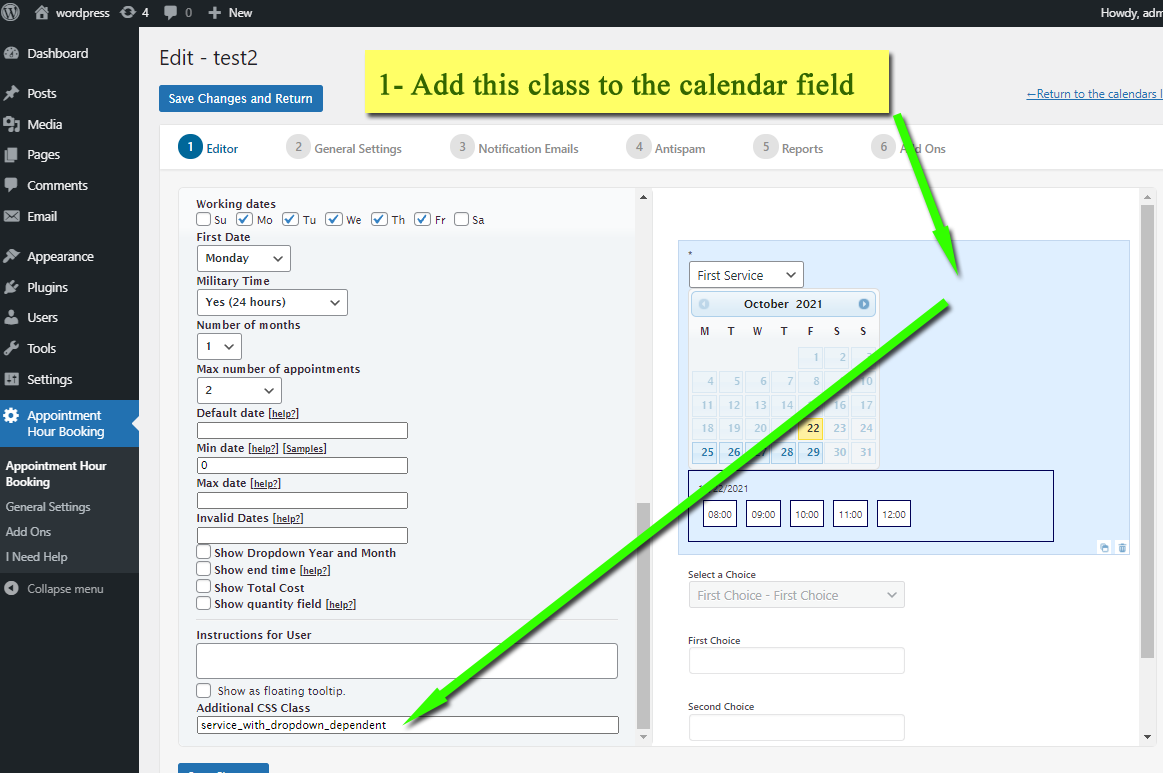
The first step is to set the class name "service_with_dropdown_dependent" for the calendar field:
The second step is to add an additional drop-down with the same services defined for the calendar. The dependent fields will be defined for this new drop-down added. See the following screenshot:
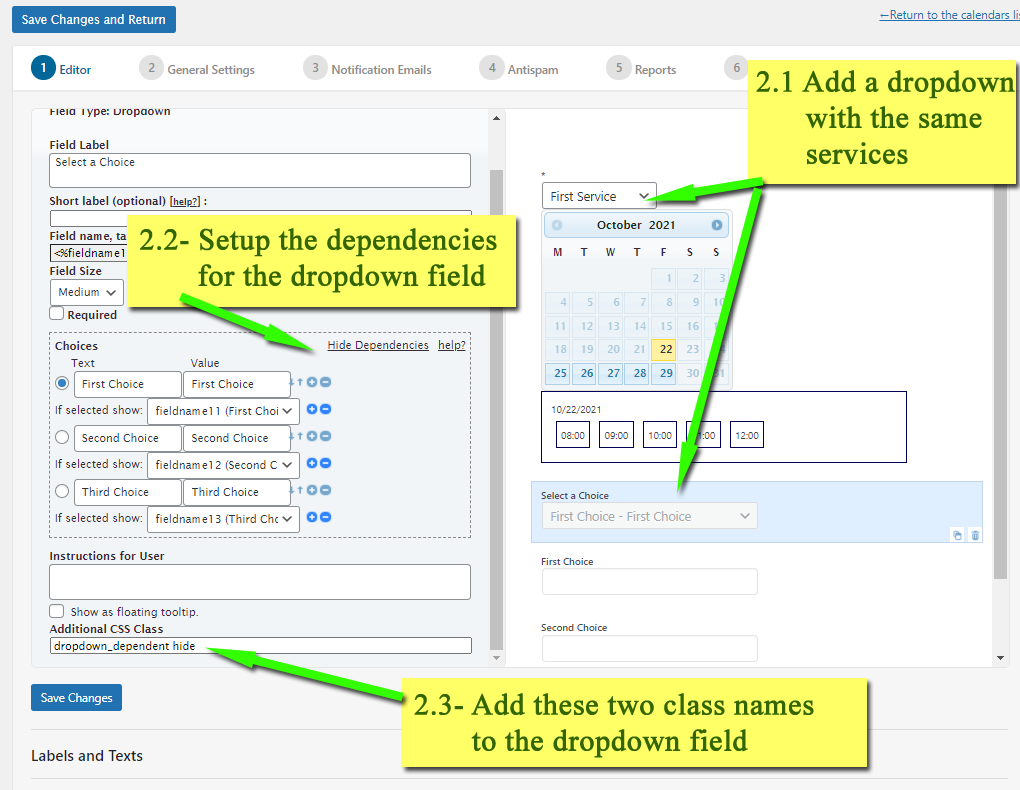
Important: Be sure to set the class names "dropdown_dependent hide" for the dropdown field as shown in the above image.
The additional drop-down will appear only in the administration area, it will be hidden form the public website.
When done you should paste a custom script (can be copied below in this page) in the "General Settings >> Edit Scripts" area as displayed in the following image:
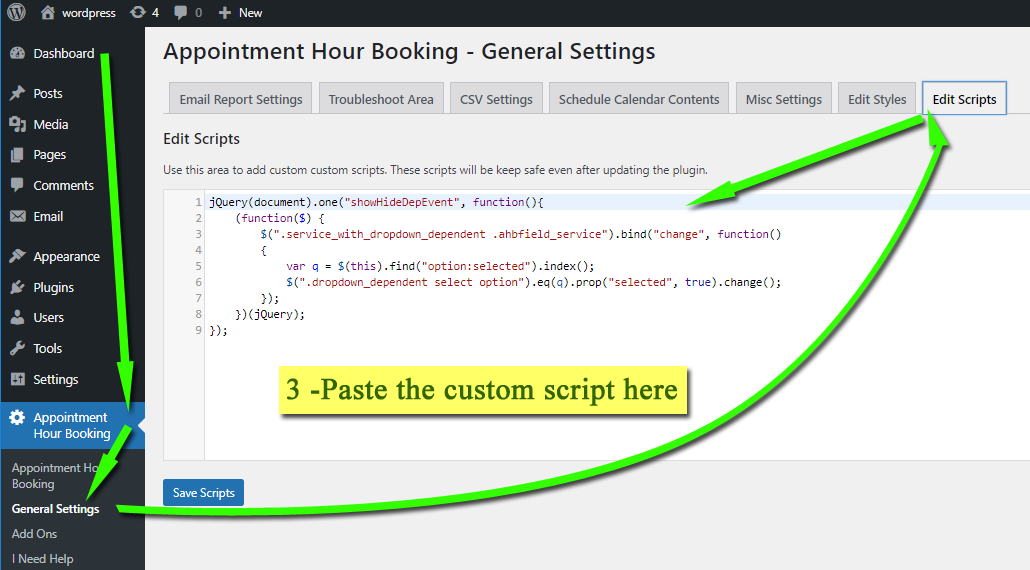
The following is the custom script you have to copy and paste into the "Edit Scripts" area:
Feedback about these features will be welcome, feel free to open a support ticket for any question.